Advertisement

Monday, 8 February 2016

FROM THE LENS OF THE LENOVO VIBE SHOT

lenovo-vibe-shot-1
Over the years, smartphone manufacturers have tried combining the phone and camera into one device without making it look like a bulky point and shoot camera. Most of these smartphones end up having a protruding camera on the back. Let’s be honest, most of them look quite ugly.
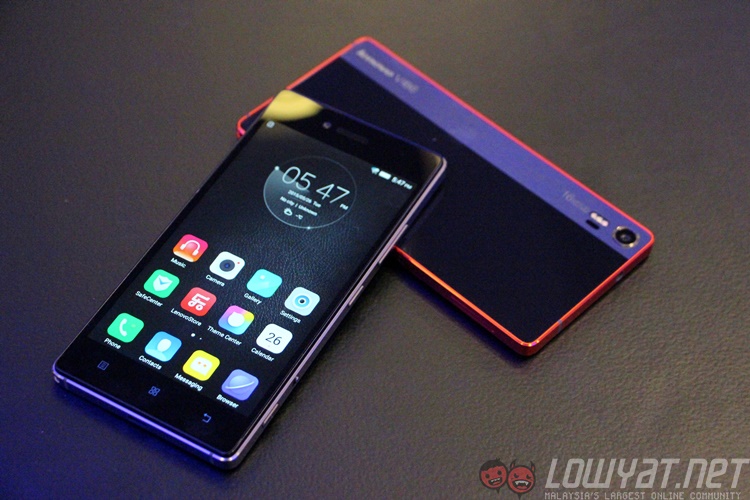
Lenovo’s Vibe Shot, however, is an interesting take on the smartphone camera. Featuring a back design that’s reminiscent of a pocket camera, it’s also the only “camera-centric” smartphone that doesn’t feature a camera hump.
The Lenovo Vibe Shot, announced at MWC 2015 and officially released in the middle of last year, is a mid-range device with pretty decent hardware. The smartphone features a full HD 5-inch IPS LCD screen protected by Corning’s Gorilla Glass 3. It runs on a 64-bit 1.7GHz octa-core Qualcomm Snapdragon 615 processor paired with 3GB of RAM, utilising the Adreno 405 GPU. In terms of storage, it has 32GB of internal storage with support for expansion up to 128GB via the microSD card slot. This 145g device runs on Android 5.1 Lollipop and is powered by a non-removable Li-Po 3,000 mAh battery.
lenovo-vibe-shot (1)
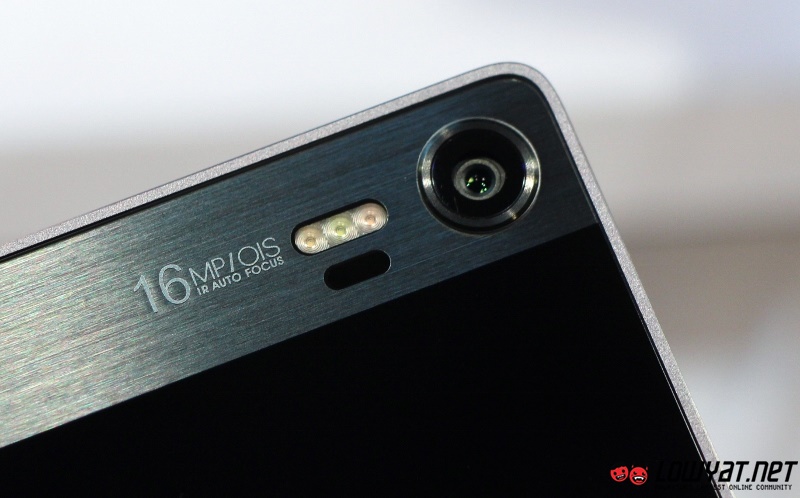
However, the focus is with the 16MP BSI sensor, complete with IR autofocus and a host of unique software features that promises to help you take better photos.

Camera

Lenovo Vibe Shot MWC 2015 23
At the back of the Lenovo Vibe Shot, you’ll find the 16MP camera that is fitted with optical image stabilisation (OIS) and a true 16:9 back-illuminated sensor (BSI). It also has tricolor flash to help with low-light shots and infrared auto-focus which is touted be twice as fast compared to normal autofocus.
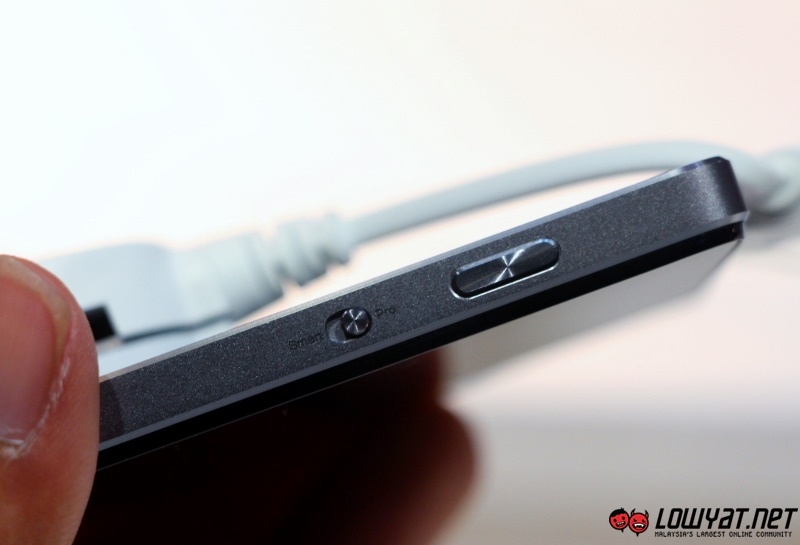
Other than that, the camera houses a 6-piece module lens that help with the image’s clarity. There are two buttons on the side of the phone – a shutter button and a toggle that switches the phone’s capture mode from ‘Auto’ to ‘Pro’ and vice versa.
Lenovo Vibe Shot MWC 2015 03
lenovo-vibe-shot-selfie-flash
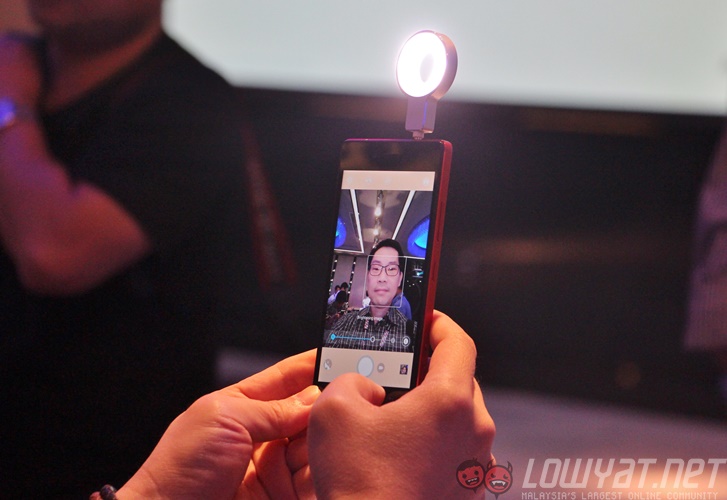
As for the front, there is the 8MP fixed-focus front camera which is capable of taking panoramic selfies and full HD videos for clearer video call sessions. If there isn’t enough lighting, the Selfie Flash should prove itself useful.

“Auto” Features – Auto Mode

Screenshot 05 - Auto Mode
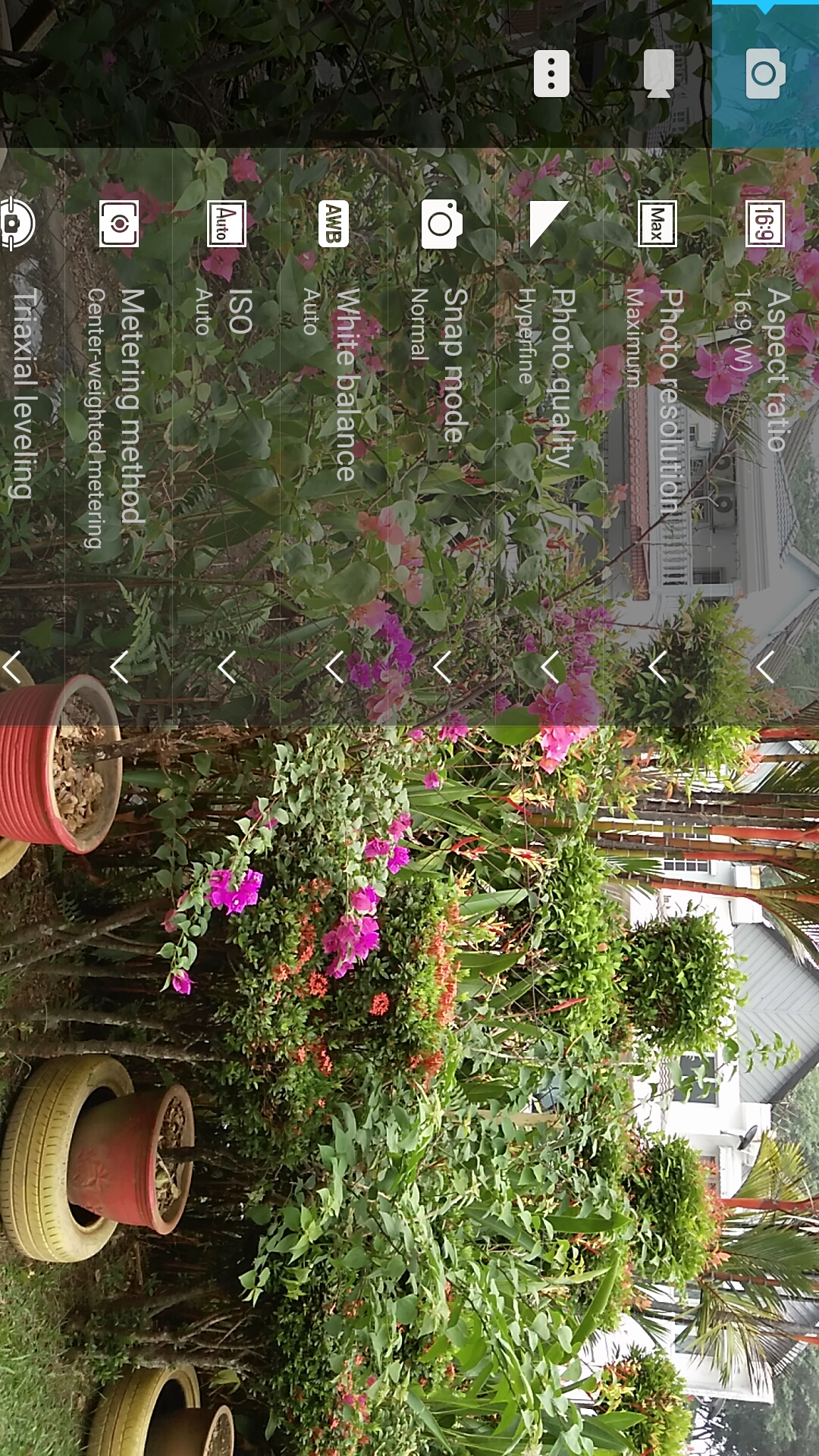
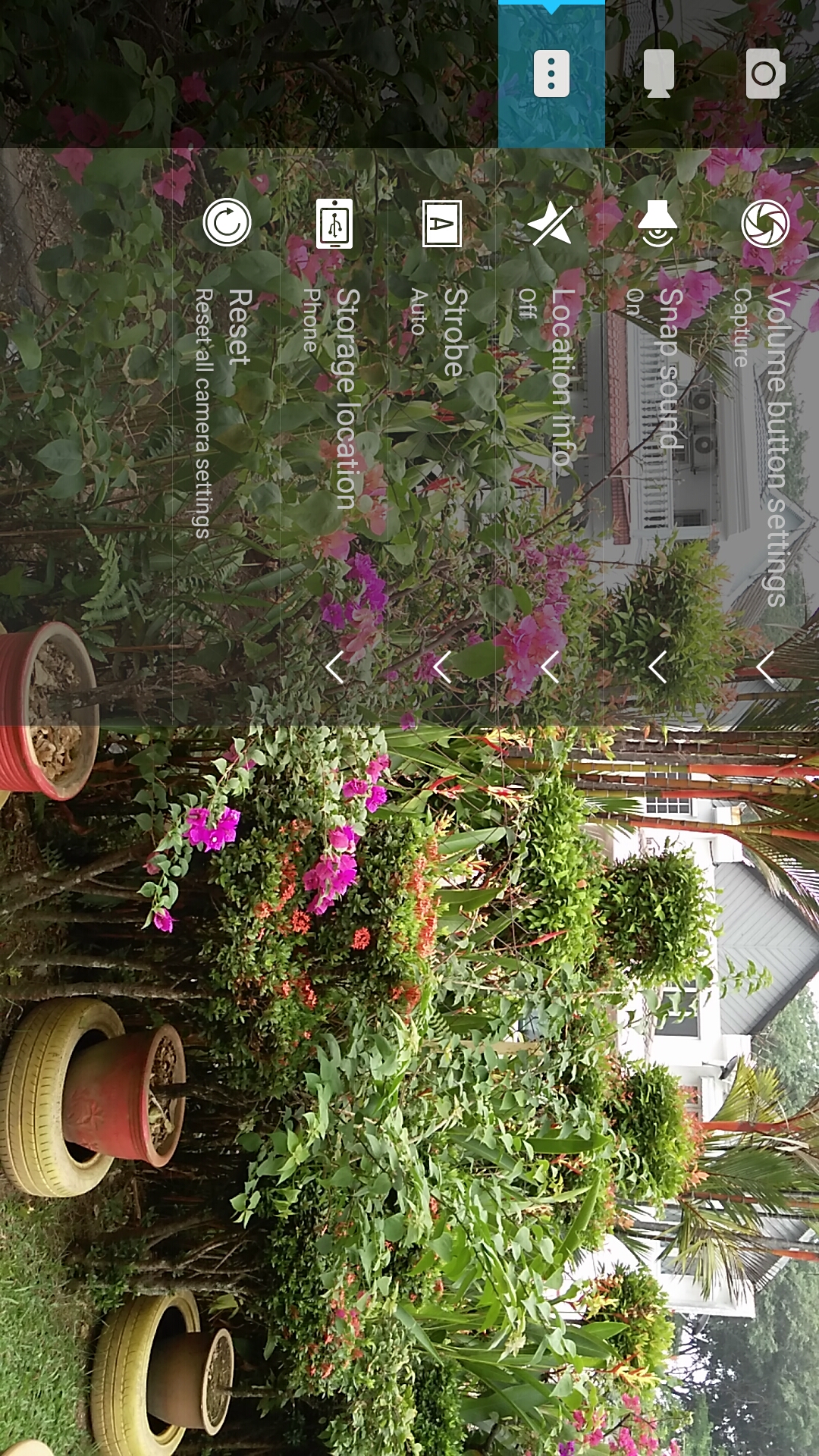
On the Vibe Shot, the Auto mode consists of two sections – Auto and Smart. The Lenovo Vibe Shot’s camera interface is minimalistic with the use of smaller and lesser icons showed on-screen. There are a bunch of settings that can be changed from the image’s aspect ratio, maximum photo resolution, white balance, metering method and more.
Screenshot 01 - Auto Mode
Screenshot 04 - Auto Mode
During our testing, auto mode performs pretty well with standard point and shoot shots. Shots are clear and detailed with a good depth of field. That being said, the camera does tend to oversaturate colours that are present in the image.
Sample Image 1 - Auto Point and Shoot
Auto mode standard shot
Sample Image 2 - Auto Point and Shoot close-up
Auto mode close-up
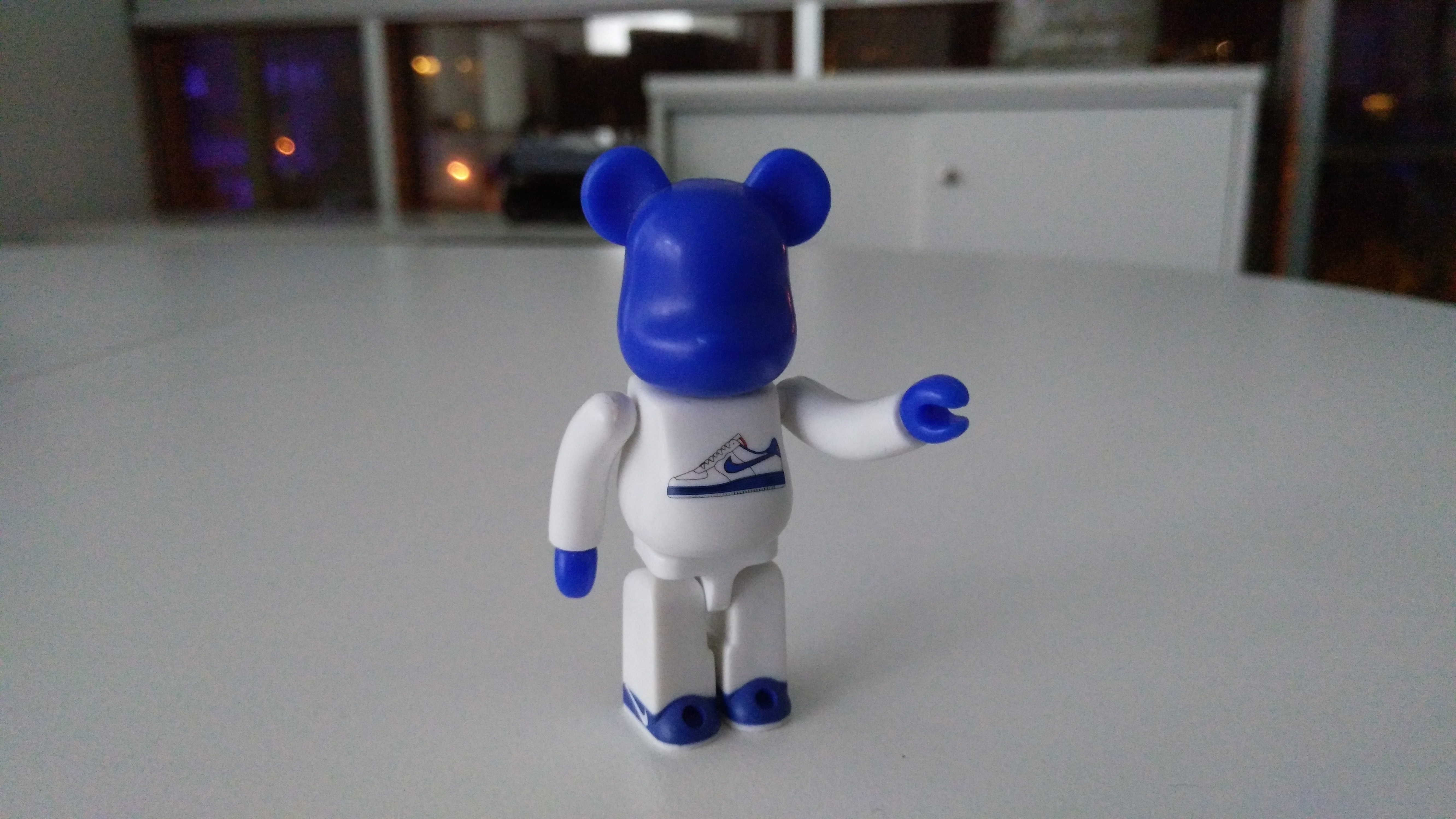
Sample Image 3 - Auto Point and Shoot low light
Auto mode low-light
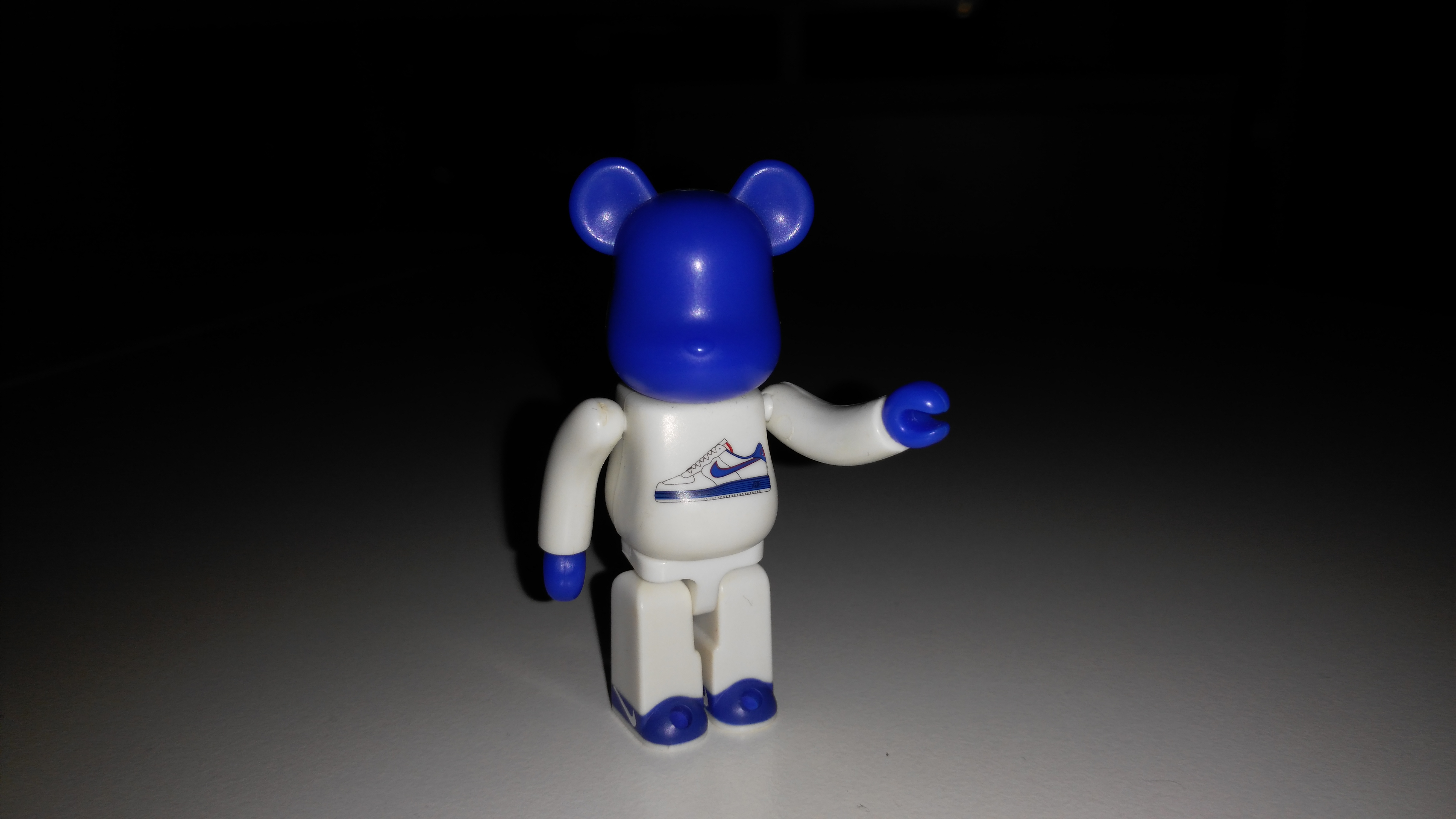
Sample Image 4 - Auto Point and Shoot with flash
Auto mode with flash

“Auto” Features – Smart Mode

The Smart Mode on the Lenovo Vibe Shot is a mode that you can find only on the Vibe Shot. It automatically detects the type of scene the user is pointing at. Upon activating the mode, the camera detects the scene and then shows an on-screen guide to help the user take the ‘perfect’ picture, which is mainly based on composition. The available modes in Smart mode are Portrait, Gourmet, Scenery, Lowlight, Ultra Lowlight, and also Backlight (HDR).
Screenshot 07 - Auto Smart Potrait 2
For example, we tried taking a photo of our colleague with the Smart mode on. The camera accurately detected that it was a portrait shot, which prompted the on-screen instructions to appear and guide us on what we needed to do to take the best portrait shot of our colleague. As we moved the camera, the software “guided” us to frame our colleague perfectly based on the rule of thirds, hitting the 100% mark when we hit the sweet spot.
Sample Image 6 - Auto Smart Gourmet 1
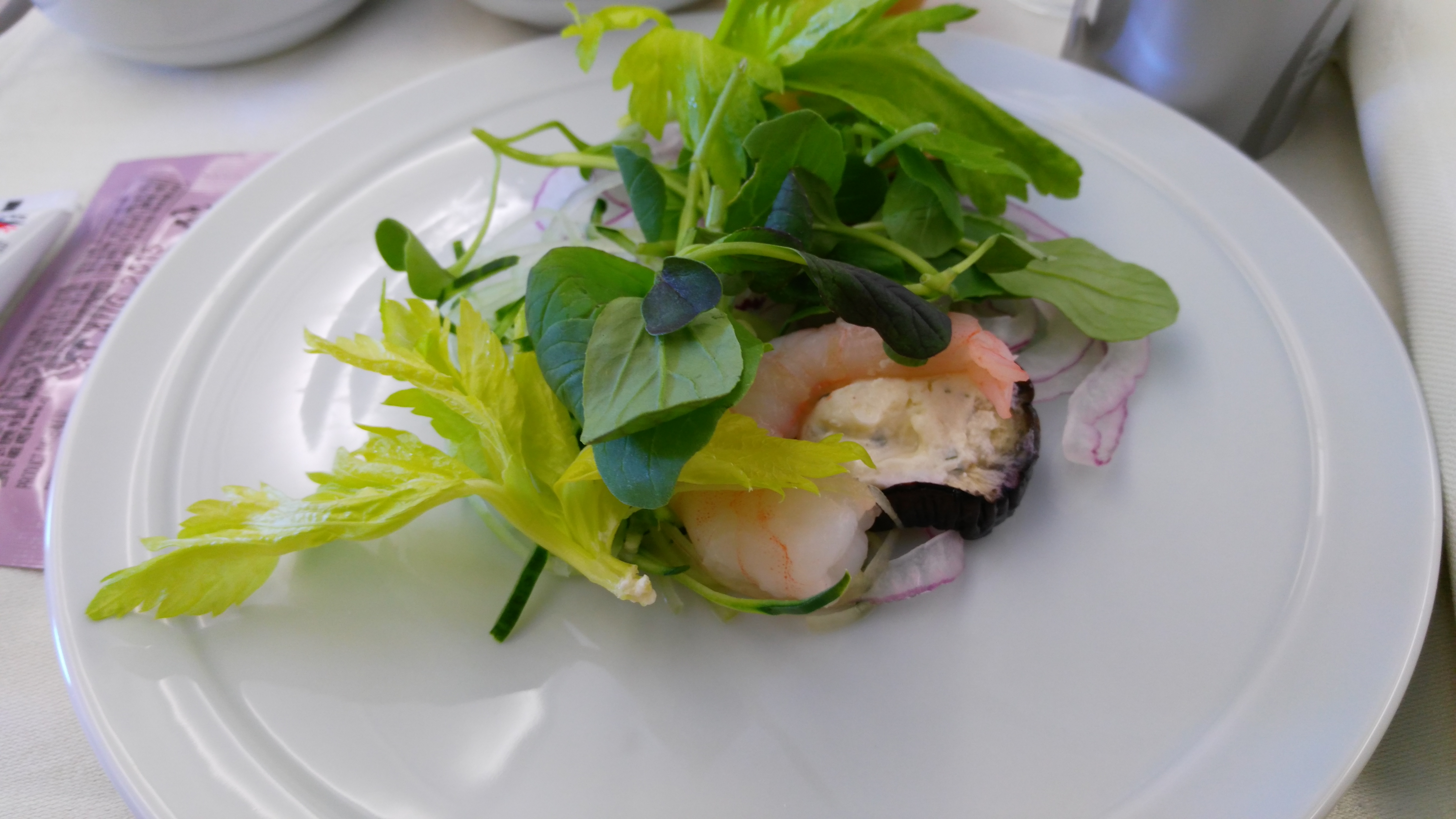
Of course, being a typical Malaysian, I take photos of my food before I actually eat them. With the Smart mode on, the software again prompted us to shoot from the best angle (based on its algorithms). The resulting photo above is decent, though there’s a tinge of under-exposure.
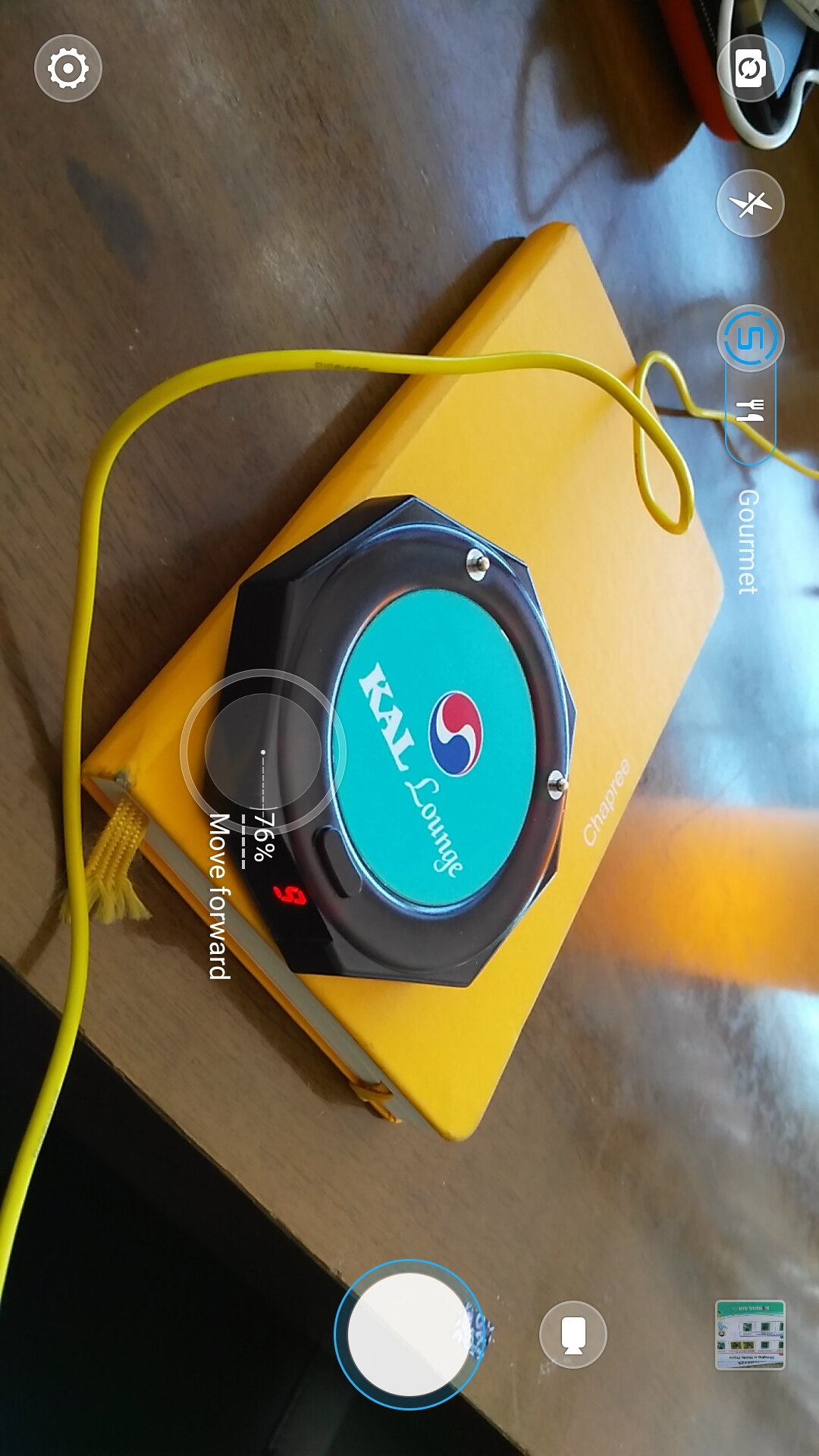
Screenshot 10 - Auto Smart Gourmet 3An example of the on-screen instructions. As you move the camera, the percentage (or the “score”) goes up or down, depending on how well you frame the subject. When it hits 100%, the shutter button glows blue to prompt you to shoot.
One quirk of Smart Mode is that we were not able to choose the scene ourselves and most of the time, the scenery detection is wrong. Does this RFID notification device look gourmet-ish to you?
Screenshot 12 - Auto Smart Not Accurate
To see the Lenovo Vibe Shot’s camera’s Smart mode in action, check out these videos below:

“Pro” Features – Manual Mode

Screenshot 13 - Pro Manual 1
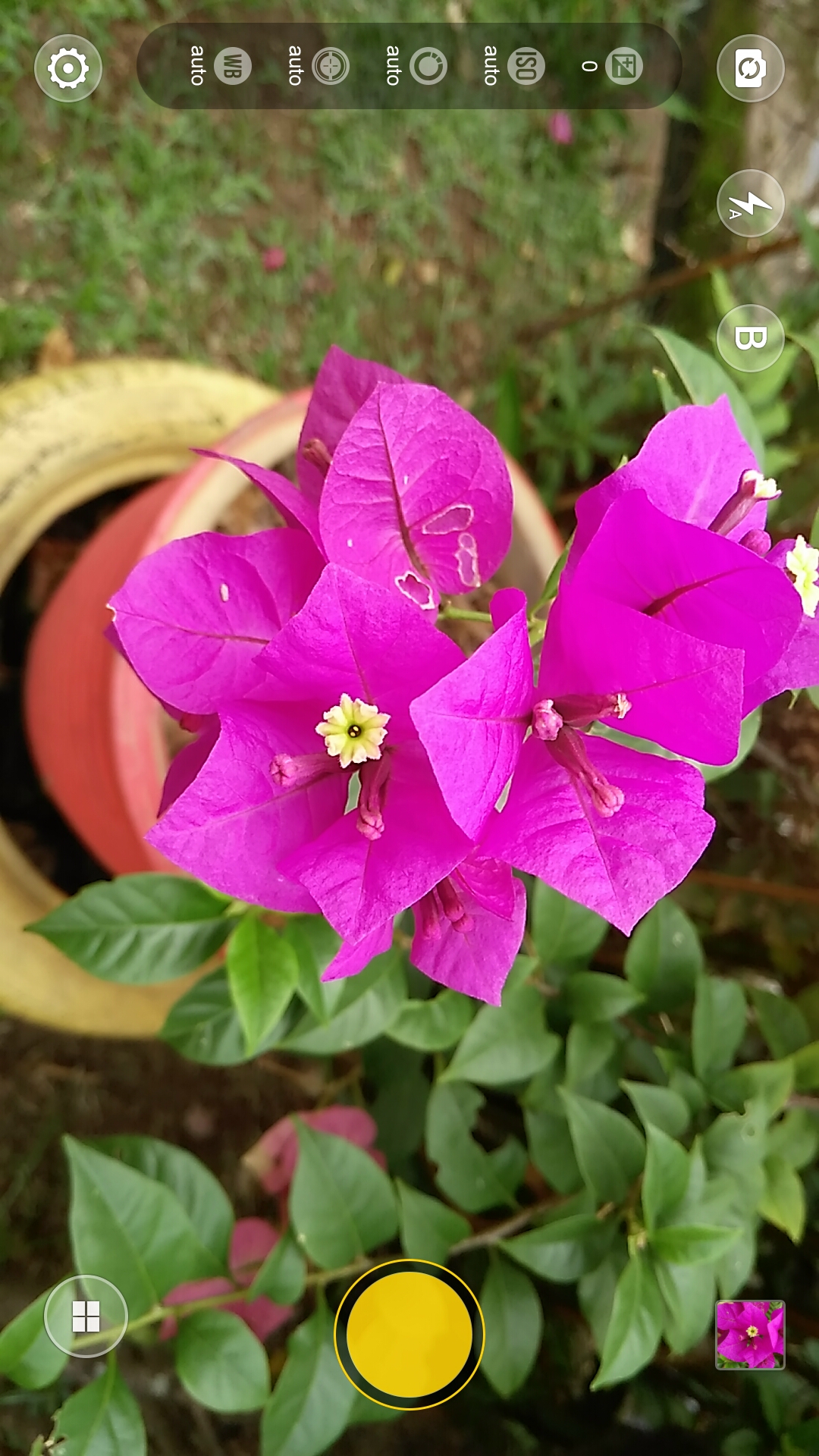
Apart from the “Auto” mode in the Vibe Shot’s camera, Lenovo also included the “Pro” mode for enthusiasts to take full control of the camera’s settings.
Screenshot 14 - Pro Manual 2
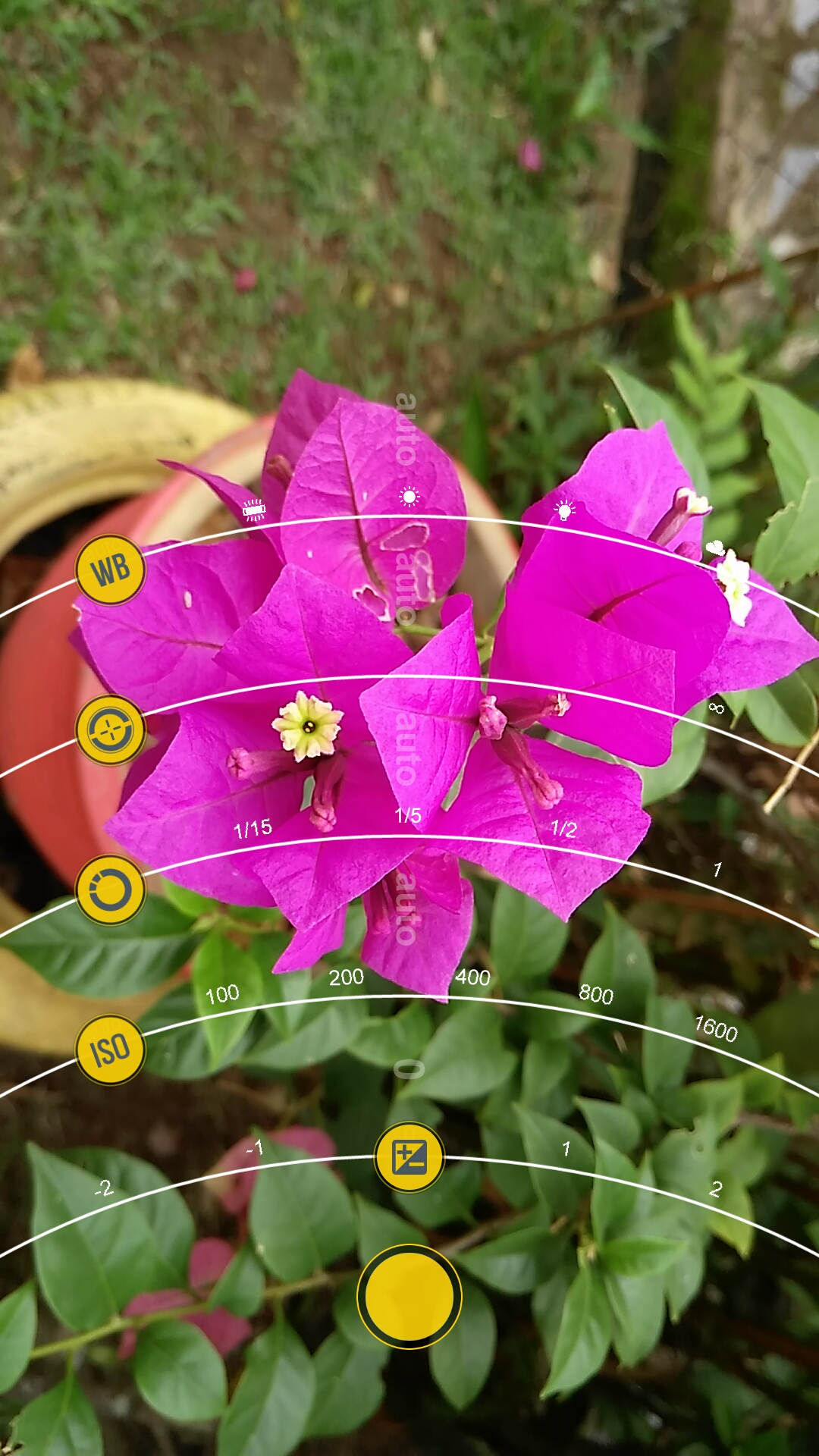
In Manual mode, the interface still remains minimal with only the addition of a bar on the left and the change of colour of the shutter button (white to yellow). Lenovo tries to emulate the settings normally found on a DSLR camera, and compact it all into a 5-inch display of a smartphone.
Shots taken on ‘Pro’ mode really depends on how good you are with taking photos with manual settings. If you can get the settings right, then the shots will actually turn out amazing; if not, well…there’s really no one else to blame. Here are some shots taken in Pro Mode on the Vibe Shot by my colleagues who took it with them on assignment.
Sample Image 11a - Random Sample 3 No HDR
Sample Image 13 - Random Sample 5
IMG_20150526_191034
IMG_20150527_165637

“Pro” Features – Creative Mode

If you need a little help to get artsy creative shots, that’s where the Creative mode comes in. It has preset ISO and aperture settings that help with modes like Panorama, Art Nightscape (nightview shots), Artistic HDR, Blur Background (bokeh shots), and Golden Years (light writing, slow shutter manipulation). Most of the time, these Creative mode settings work fine and the photos taken are pretty decent. The colours might be a little oversatured (again), but the details are there and it actually does a good job managing the depth of field.
Sample Image 7 - Pro Mode Golden Years City Traffic
Sample Image 8 - Pro Mode Artistic HDR Automobile

Final Words

lenovo-vibe-shot-3
The Lenovo Vibe Shot packs a pretty powerful camera, while the software offers features unique to this phone only. During our time using the Vibe Shot, we did find that the camera app itself has some shutter lag, and oddly enough we actually stopped using Smart Mode after a week or so; the scene detection and “score” proved to be more gimmicky than helpful over time.
Given its age, the Vibe Shot’s price should have decreased by quite a bit into more a more affordable range. If you’re looking for a budget smartphone with a good camera, this may be worth a shot.

Friday, 5 February 2016

Moto 360 Sport review: Solid smartwatch, subpar workout tool

The original Moto 360 was the first Android Wear watch to get people really excited about the platform. The second was a thoughtful update, if not exactly a game-changer. And now we have a third, the new Moto 360 Sport, which has a slightly different mission than the others. Sure, it's easy to look at it as a spinoff of the existing 42mm model, with similar internals and the same $299 price tag. I did -- at first, anyway. Its purpose as a fitness companion helps it stand apart from the rest of the Android Wear pack, though, as do a few neat software tricks. Make no mistake: While it isn't the best Android Wear device out there, it's still a decent workout buddy.
Pros
  • "Hybrid" display works great
  • GPS does a respectable job tracking runs
  • Lightweight and comfortable
 
Cons
  • Can't swap out the watch band
  • Could use more physical controls
  • Battery life could have been better

Summary

The Moto 360 Sport doesn't stray too far from the path this year's other Moto 360s took, but goodies like its AnyLight hybrid display make it great watch for the outdoors. It's plenty snappy for an Android Wear watch, too -- we just wish the hardware had been tweaked more to better suit the needs of the athletes (and wannabes) Motorola was targeting.

Design

This will come as a surprise to exactly no one, but the 360 Sport feels like a cheaper, slightly more rugged take on the standard edition. "Feels like" are the key words here; I naturally (and foolishly) assumed that the more athletic version of the 360 would be more adept at handling dust and water. Sorry: The 360 Sport has an IP67 rating just like the original, meaning it's not meant to take prolonged submersion or blasts from a high-pressure sink. In other words, this smartwatch can come to the gym with you; just don't bring it into the shower afterward. This, dear friends, is what we in the business call a "bonehead move." Activity trackers do their best work when you can wear them all the time, and competitors like Garmin understand the importance of standing up to tough conditions.
None of the standard 360's customization options are available either; the best you can do is decide whether you'd prefer a white, black or orange silicone band. That silicone wraps around the Sport's body almost completely, too, leaving openings for just a microphone and a textured plastic button at the two o'clock position for turning the screen on and off. I loved the Moto 360 2015's near-endless customization choices (even if they did leave our reviewer Nate with a pretty hideous watch), but it's no surprise that wouldn't fly for the Sport.
At the very least, the silicone strap is unobtrusive and comfortable. It makes the 360 Sport one of the few smartwatches I can wear while writing all day without going absolutely batty. Even better, the way the silicone band arches away from the watch's body means there's always some space between plastic and flesh; you'd be surprised how well this helps mitigate Sweaty Smartwatch Wrist Syndrome.

Hardware and display

The Moto 360 Sport features a 1.2GHz quad-core Snapdragon 400 chip, along with 512MB of RAM and 4GB of storage. Oh, sorry, did you fall asleep there? I can't blame you: That's almost the same configuration as the standard Moto 360, not to mention LG's Watch Urbane, the Huawei Watchand others. I say "almost" because the Sport is different in one crucial way: It's one of only two Android Wear watches to have built-in GPS, a feature that, while helpful for charting out your runs, eagerly slurps up the watch's remaining power.
The 300mAh battery does well if your days are mostly spent brushing off notifications; my review unit routinely ran for 18 to 20 hours on a charge in those cases. More importantly, the 360 Sport seems to use that Snapdragon chipset in ways other devices haven't: It's been unflinchingly snappy over my week of testing. You'll still run into the occasional slowdown when swiping through a long list of apps but in most cases the Sport has been quite speedy indeed.
So far, though, the real star of the show has been the watch's 1.37-inch, 360 x 325 "hybrid" screen, which combines a reflective panel for outdoor use in bright daylight with a more conventional LCD display for legibility indoors. When you're inside -- which in my case is almost all the time -- the screen behaves the same as any other Android Wear watch. Outdoors, though, Motorola's AnyLight screen tech does a fine job reflecting photons under the harsh winter sun, even when it's directly overhead. Purists might still bristle at the "flat tire" at the bottom that houses the ambient light sensor, but I've had plenty of time to get used to it. In fact, I don't even really notice it anymore.

In use

Despite the clear fitness angle, most of the time the 360 Sport is like any other Android Wear watch. The platform itself has gotten some notable upgrades over the past few months, including Wi-Fi compatibility, wrist gestures and drawing emoji, making the experience feel more polished than it did a year ago. All of the stock apps and menu options are right where they've always been too, so early-adopting Android Wear aficionados can pick up right where they left off.
What's especially neat about the Sport is its approach to activity tracking, which will stare you in eye as soon as you fire up the watch. The Sport watch face is the default, and it tracks steps taken, calories burned and heart activity in minutes. Tracking a run takes a single tap on a Start button in the center of the screen. Just select "indoors" or "outdoors," set a goal, and you're off.
When you glance at your wrist mid-run, you'll see your total running time, how many miles you've gone and your current pace. There's actually even more information you can dig into, like an up-to-the-moment heart rate display that tells you what calorie burning zone you're in, but that takes an extra swipe to the right -- not the easiest feat when you're trying to beat your mile record. It's moments like this that made me wish the 360 Sport had another physical button to make sifting through this info easier, but Motorola clearly didn't want to muck with its hardware formula.
It's too bad. Between the built-in GPS and the ability to stream music from the watch's 4GB of internal storage, the 360 Sport seemed like an ideal runner's companion. An extra button would have been yet another selling point, as would have a bigger battery. Remember when I said I regularly enjoyed 18 to 22 hours with loads of notifications rolling in? That figure drops dramatically with GPS in action -- even more so when you're using the watch as a music player. I usually try to run for an hour, and with the GPS and Bluetooth streaming working, the 360 Sport lost about 50 percent of its charge by the time I finished. For folks who run early and habitually plop their watches into their charging cradles throughout the day, this won't pose much of a problem. If, on the other hand, you're a late-in-the-day runner like me, there's a solid chance the watch could die before you finish.
Continuing our tour, another quick tap shows you all those vital stats before leading right back out to the watch face. Simple. For more nuanced info (complete with maps and graphs!), you'll have to turn to a separate Moto Body app on your phone. It dutifully sucks up movement data and run statistics from the watch and lays them out in handsome graphs for at-a-glance insights.
It's here where you first get a sense of how accurate the 360's GPS is; it tracked most of my jaunts through Montreal without issue, though it misinterpreted some of my in-apartment pacing as a trek down the block and back. That's certainly something to be aware of, but it's also partially my fault for not turning off Run mode when I should have. On the flip side, the watch is better at figuring out your heart rate and current step count than the original Moto 360 ever was -- a crucial detail to get right if the 360 Sport wants to appeal to the fit crowd.
I'm no fan of sealing my health data in one place, so Moto Body offering to share it with services like Strava, Runkeeper, UnderArmor Record, Google Fit and more was a welcome touch. Pushing that information onto other platforms is a great trick — I just wish the 360 Sport had a few extra fitness-focused bells and whistles. Sadly, much of this is moot if you're planning to use the 360 Sport with an iPhone. When connected to an Apple device, the watch works fine as a screen for notifications and Google Now cards and that's about it. There's no corresponding Moto Body app on iOS for a view of your activity data, nor can you feed information from the watch into Apple's stock Health app.

The competition

$299 can go a long way if you're looking for a new wearable, and there's plenty out there to make a would-be 360 Sport owner do a double take. If, for example, you don't need heart rate information, Sony's SmartWatch 3($99) has a built-in GPS nestled inside a properly waterproof body. Most units you'll come across will have a workout-friendly rubber strap, but you've at least got the option to wrap the core unit in a few additional bands. And there's always the classic Moto 360 ($299-plus) available if you want most of the 360 Sport experience with a prettier design.
Hardcore runners have options like Garmin's Vivoactive ($249) to consider, too, which trades the Android Wear app ecosystem for improved accuracy, waterproofing and informational depth. Then again, some people are looking for a workout tool that's even more casual. The Fitbit Surge ($249) handles the occasional notification and tracks your runs and heart rate while maintaining a level of physical subtlety. Oh, and on the off-chance you're an iOS user considering the 360 Sport for its fitness chops, don't bother. There's no straightforward way to get all that health data off the watch and onto an iPhone -- you might as well stick with an Apple Watch($349 and up).

Wrap-up

There are people who couldn't care less about fitness stats on a watch, and there are people who crave them. The Moto 360 Sport really only makes sense to people who fall smack in the middle. It's functional and even ingenious in some ways, but it doesn't provide much more than the normal 2015 360 does. Despite the lack of ambition, a lack of competition means 360 Sport is still the best fitness-friendly Android Wear watch you can find. If you're a die-hard runner, though, or need a little wrist-candy to liven up your next cocktail party, look elsewhere.

HP Spectre x2 review: A less expensive Surface rival

We've been noticing something the past few months: Every tech company is trying to be more like Microsoft. Which is to say, they're belatedly copying the Surface Pro, a laptop/tablet mashup that's already in its fourth generation. There are different examples: the iPad Pro from Apple, Google's Pixel C, as well as offerings from Lenovo and Dell. But HP's latest is an especially literal interpretation. The Spectre x2, as it's called, is a 12-inch Windows tablet with a keyboard cover. Also like the Surface Pro, it sports a kickstand around back and can be used with a pressure-sensitive pen. But, it's cheaper and the keyboard actually comes in the box (hear that, Microsoft?). On paper, then, it would seem that while the x2 isn't groundbreaking, it could be worthwhile in its own right.

Pros
  • Less expensive than rival machines and includes a keyboard, too
  • Comfortable typing experience
  • Adjustable kickstand
  • Decent audio
  • Uses Intel's depth-sensing RealSense camera setup
  • Supports pressure-sensitive pens
 
Cons
  • Doesn't support Windows Hello, despite having RealSense cameras
  • Touchpad can be flaky
  • Not so comfortable to use in the lap
  • Slower than its rivals with shorter battery life
  • Despite having a Core M chip, isn't necessarily thinner or lighter than "Core i" systems

Summary

The Spectre x2 undercuts its competitors with a lower price that includes a keyboard in the box (and it's a very comfortable keyboard, at that). Still, for more money you could buy a similar product with faster performance, longer battery life and a sharper screen. That means the x2 is a good deal for the money, but not the best in its class.

It works like a Surface, but it doesn't look like one. Whereas the Surface Pro is all chamfered edges and unibody metal, the Spectre x2 is marked by rounded corners, exposed screws and some chrome and glass bits. Let's start our tour on the backside for once, because that's where most of the action is. The all-important kickstand sits flush with the rear case until you hold down a release lever on the left side. When extended, it looks like an easel, with an open metal frame that stays put on flat surfaces, but isn't always comfortable to balance on your lap. I also find it's slightly more cumbersome to pull out than the Surface's kickstand, though both are a bit awkward in that respect. On the plus side, the kickstand is fully adjustable (also like the Surface Pro), which not all hybrids are.
Also on the rear, you'll find a black glass strip lining the top edge. That's where HP places Intel's 3D RealSense camera setup, which is composed of a main 8-megapixel shooter and stereoscopic 720p cameras for capturing different layers of depth information. As we've found in other productsusing the technology, it can be fun to take photos and then adjust the focus after the fact, as well as apply filters to selective parts of the picture. Unfortunately, while RealSense devices are in theory able to take advantage of the Windows Hello biometric log-in in Windows 10, the fact that these depth-sensing cameras are on the back of the x2 means they won't be of any use for things like facial or iris recognition when you want to quickly sign in to your machine. Also, it's a little awkward using a 12-inch, nearly 1.9-pound tablet to frame shots.
Speaking of the sort, the x2 is thin and light in the grand scheme of things -- i.e., compared to full-fledged laptops -- but it's not remarkably small either. All told, it comes in at 840 grams (1.85 pounds) and 8mm (0.31 inch) thick. That makes it easy to carry indeed, though the keyboard cover adds quite a bit of weight, bringing the total to 2.68 pounds. Meanwhile, the Surface Pro 4 starts at 1.69 pounds, with the optional Type Cover adding just 0.64 pounds. Need some more examples? The tablet portion of theSurface Book weighs 1.6 pounds with a more powerful Core i5 or i7 processor, while the 12.9-inch iPad Pro starts at 1.57 pounds and measures 0.27 inch thick, despite having a larger screen than the x2.
If it sounds like I'm splitting hairs, I have a point. One of the main reasons to use Core M, ostensibly, is that you can achieve thinner and lighter designs than you could with a heavier-duty Core i processor. Or, at least, that was the case last year when the first Core M PCs started hitting the market. Now, though, there's no real benefit, at least in terms of size and weight. As you'll see, too, Core i systems still have a leg up when it comes to both battery life and raw performance power. That leaves just one reason to get a Core M system, then, and that's price.
Before I get too far ahead of myself, though, let me finish up my tour of the tablet. The all-important power/lock button sits on the top edge, with separate pin-locked microSD and SIM trays on the right. Also on the right is one of two USB Type-C ports that you can use to charge the device. Google's latest Pixel Chromebook also had two USB-C charging ports and while it's not what I'd call a necessity, it's nice to be able to choose which side you'd like to have the charging cord to come out of, depending on where you're sitting relative to the nearest outlet. Should you need a full-sized USB Type-A connection, there's a dongle included in the box, something other hardware makers don't bother to offer.
On the left edge is the second USB-C socket, along with a two-stage volume rocker, headphone jack and the release lever for the kickstand. Lastly, the tablet features dual Bang & Olufsen speakers, one on the right and left side. (There's also some B&O branding on both the tablet and keyboard dock, lest you forget who's responsible for those thumping tunes.)

Display

At the center of everything is the 12-inch IPS display. The resolution is capped at 1,920 x 1,080, which is lower than some competing products, including both the Surface Pro 4 and iPad Pro. Still, on a screen this small, the difference would be subtle at best, so in the interest of keeping the cost down, this was a fine compromise. Even if the screen angle weren't adjustable, which thankfully it is, I would have had an easy time making out the screen. As a warning, the glossy panel doesn't completely repel glare, but color and contrast at least stays mostly consistent as you tilt the screen forward and back.
Lastly, the x2 is compatible with pressure-sensitive Wacom pens -- that's the same technology that the Surface Pro used to have before Microsoftbought Wacom competitor N-Trig. All of which is to say: The x2 will make a good pen tablet for drawing and note-taking, so long as you're willing to buy your own writing implement. HP sells an active pen on its site for $30, though any Wacom pen using the same technology will do.

Keyboard

The Spectre x2 might be slower than the competition, and the battery life might not be as long, and the screen might not be as sharp, but damn if it doesn't have one of the best keyboards I've seen on a device like this. The metal keyboard feels sturdy, for starters, which goes a long way toward making it comfortable to use in the lap. It's backlit -- another plus. And, perhaps most importantly, the keys are generously sized with an impressive 1.5mm of travel, making them uncommonly cushy for a product in this class.
Also, I like how HP gives you a choice of resting the keyboard flat against your desk (or lap), or instead folding up the top to attach to magnets inside the tablet's lower bezel. This gives the keyboard a lift in the back that for some will translate to a more ergonomically sound experience.
Too bad the touchpad isn't nearly as refined. To be fair, when it works it works well, with smooth enough scrolling and precise cursor tracking. But it doesn't always work. I wasn't always able to get the pointer to go, and I frequently found myself accidentally rearranging pinned browser tabs. Worse, there were times when I swiped my finger across the large touch surface only to find that it wasn't responding. Usually, a little persistence would do the trick, as would detaching and then reattaching the tablet. But it shouldn't be that way. Fortunately, I think this is just the sort of problem a firmware update can fix.

Performance and battery life

PCMARK7PCMARK8 (CREATIVE ACCELERATED)3DMARK113DMARK (SKY DIVER)ATTO (TOP READS/WRITES)
HP Spectre x2 (1.2GHz Core M7-6Y75, Intel HD 515)3,3953,307
E1,884 / P1,148 / X331
2,737554 MB/s / 281 MB/s
Microsoft Surface Pro 4 (2.4GHz Core i5-6300U, Intel HD 520)5,4033,602
E2,697/ P1,556/ X422
3,6141.6 GB/s / 529 MB/s
Lenovo Yoga Pro 900(2.5GHz Core i7-6500U, Intel HD 520)5,3683,448
E2,707 / P1,581
3,161556 MB/s / 511 MB/s
Microsoft Surface Book(2.4GHz Core i5-6300U, Intel HD 520)5,4123,610
E2,758 / P1,578 / X429
3,6231.6 GB/s / 571 MB/s
Microsoft Surface Book(2.6GHz Core i7-6600U, 1GB NVIDIA GeForce graphics)5,7403,850
E4,122 / P2,696
6,1911.55 GB/s / 608 MB/s
HP Spectre x360 (2015, 2.2GHz Intel Core i5-5200U, Intel HD 5500)4,965N/A
E1,667 / P932 / X265
N/A555 MB/s / 270 MB/s
Dell XPS 13(2015, 2.2GHz Intel Core i5-5200U, Intel HD 5500)4,900N/A
E2,114 / P1,199 / X330
N/A515 MB/s / 455 MB/s
The Spectre x2 comes with your choice of Core M3, M5 or M7 processor. It's the same idea as Core i3, i5 and i7, except that Intel Core M sacrifices speed for the sake of achieving especially thin and light designs, like the one we have here. The unit I tested was a top-of-the-line configuration, with a dual-core 1.2GHz Core M7-6Y75 processor, Intel HD 515 graphics and 8GB of memory. Even with the best specs offered, benchmark scores still trail new machines with Core i5 chips, including the Surface Pro 4. In particular, you'll notice a big gap in graphics-focused tests, like 3DMark.
To its credit, the LiteOn solid-state drive delivered max write speeds of 554 MB/s in ATTO's disk test, which is in line with many other SSDs we've tested recently. Even so, though, it takes the Spectre x2 about 15 seconds to boot into the desktop, whereas it might take a faster machine around 10. Also, write speeds topped out at an average 281 MB/s, which trails many of its contemporaries, including the SP4, which gets into the 500-megabyte-per-second territory in write tests.
BATTERY LIFE
HP Spectre x26:43
Surface Book (Core i5, integrated graphics)13:54 / 3:20 (tablet only)
MacBook Air (13-inch, 2013)12:51
HP Spectre x36011:34
Surface Book (Core i7, discrete graphics)11:31 / 3:02 (tablet only)
Apple MacBook Pro with Retina display (13-inch, 2015)11:23
iPad Pro10:47
Chromebook Pixel (2015)10:01
Lenovo Yoga Pro 9009:36
Microsoft Surface 39:11
Apple MacBook (2015)7:47
Dell XPS 13 (2015)7:36
Microsoft Surface Pro 47:15
Microsoft Surface Pro 37:08
HP rates the Spectre x2 for 10 hours of battery life. If they say so. Perhaps it's possible to achieve 10 hours of use if you lower the brightness to a fairly dim setting and use the machine intermittently. For my part, I never came close to reaching that milestone. With an HD video looping and the brightness fixed at 65 percent, the x2 managed six hours and 43 minutes. And it seems we're not alone: Our friends at Laptop Mag, for instance, got around six and a half hours in what's arguably a less taxing test.
All told, between the performance and battery life results, I'm convinced there's not much reason at this point to buy a device with Intel Core M, especially if you have a choice. Yes, it enables super slim designs, but so do the latest "Core i" processors. Core-i chips also offer faster performance, and early reviews suggest that battery life is longer too, especially compared to last year's Core CPUs. The only benefit to Core M seems to be that those models are slightly cheaper price your typical Core i5 system. But if you intend to own your next computer for several years, that extra $100 or so is well worth it.

Configuration options and the competition

The Spectre x2 starts at $800 with an Intel Core M3-6Y30 processor, Intel HD 515 graphics, 4GB of RAM and a 128GB SSD. From there, you can upgrade to a $950 configuration with a Core M5-6Y54 chip and 8GB of memory. That model is customizable, too, allowing you to swap in a Core M7 CPU ($50) and either a 256GB ($150) or 512GB ($450) SSD. Either way, the keyboard comes standard in the box, and the 12-inch screen has a fixed resolution of 1,920 x 1,080.
Or you could not buy an x2 at all. There are plenty of similar-looking tablet hybrids out there, including the one that started the trend: Microsoft's Surface Pro 4. If you were to compare the two based on price alone, the SP4 would seem like the worse deal: With a higher starting price of $899, it has the same key specs as the $800 Spectre x2, and doesn't come with a keyboard in the box (you'll need to buy that separately for $130). Price aside, though, it's still the better product. It's lighter (1.69 pounds, versus 1.85); it's more comfortable to use in the lap; it offers more powerful spec options; and the battery life is slightly longer, even with a more pixel dense display. Of the two, the Surface Pro 4 is the one I'd sooner recommend to my family and friends.
There are others. Lenovo will soon begin selling the Miix 700, and Dell recently released the XPS 12, a 12-inch Windows tablet with an accompanying keyboard dock. Since I haven't had a chance to test this one yet, I can't vouch for the performance, though it's worth noting that it runs on Core M chips, just like the x2, which means you shouldn't expect particularly fast performance. I'm also curious to see what effect the 4K screen option has on battery life.
The other thing I can't account for is ergonomics. We already know that the 12.5-inch tablet has a fixed position inside its dock; that puts it at a disadvantage against the Spectre X2 and SP4, both of which have fully adjustable kickstands. On the other hand, perhaps the lack of a kickstand will make it more comfortable to use in the lap. We'll see.
And lastly, what kind of reviewer would I be if I didn't compare the Spectre x2 to the iPad Pro? It, too, is a pen-enabled tablet designed to be used as a laptop on occasion, and it starts at a similar price of $799. The performance is fast, the battery life is longer than on the Spectre x2 and the pressure-sensitive Apple Pencil works well. But, iOS 9 isn't as robust a multitasker as OS X or Windows 10; none of the optional keyboard docks allow you to adjust the screen angle; and the fact that iOS 9 has no mouse support can get tiresome, depending on what you're doing. It's a worthy product in some ways, but I only recommend it in its current form to creative pros and early adopters.

Wrap-up

In this increasingly big world of laptop/tablet hybrids, the Spectre x2 isn't a bad choice, especially at this price. But that doesn't mean it's the best. The x2 is not the fastest, the longest-lasting or the most comfortable to use in the lap. It's screen is not the sharpest. But it's keyboard is arguably the easiest to type on of any click-in dock I've seen, and the audio is surprisingly decent. If money is no object, you will probably be happier with the Surface Pro 4. But, if you were hoping to avoid spending $930 just for the entry-level SP4 and keyboard, the x2 is a fine runner-up.